FlipaClip (Voice Maker)
Mobile app
iOS + Android
Freemium subscription
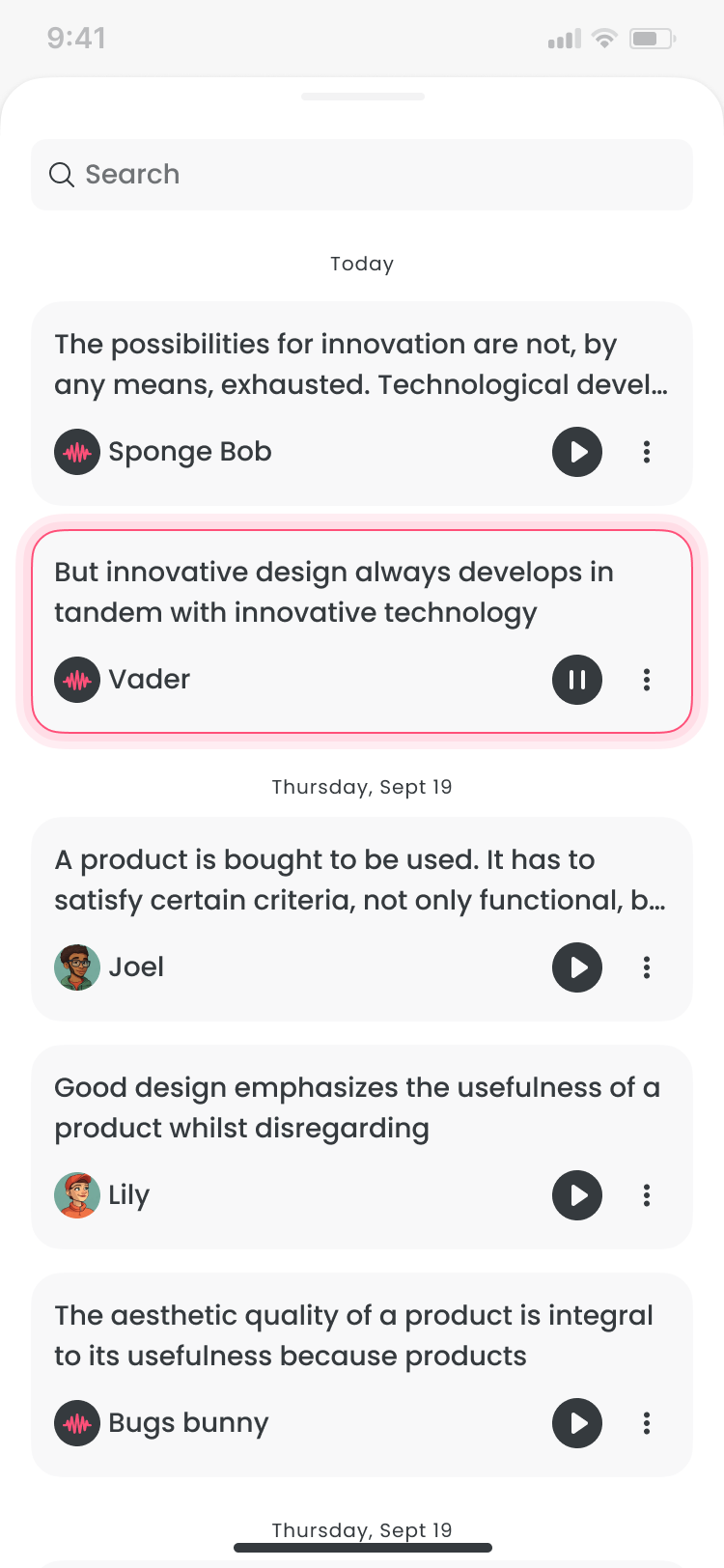
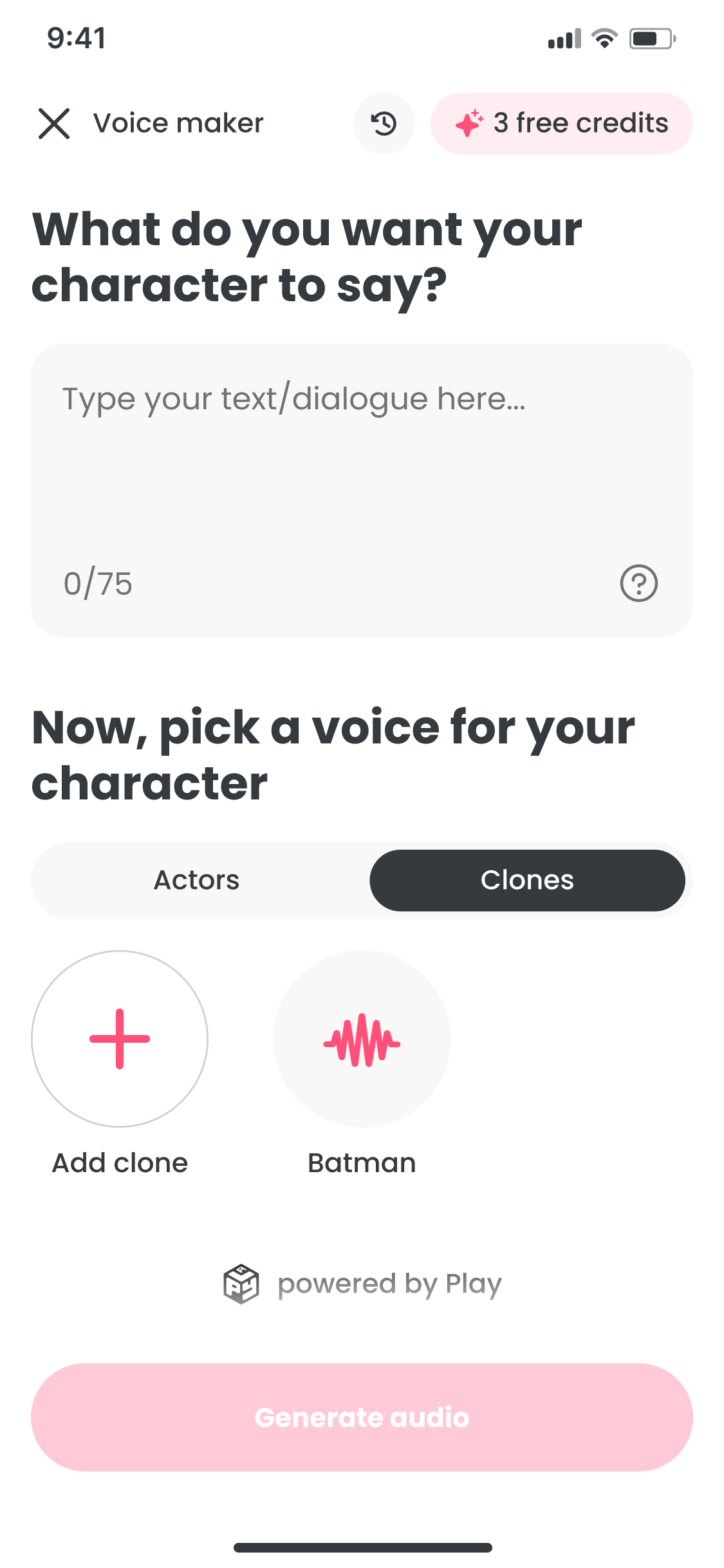
An in-app voice tool for FlipaClip. Pick a voice, write dialogue, and generate audio without leaving the workflow. Built for every screen, from iPad to 320px Android.
Context
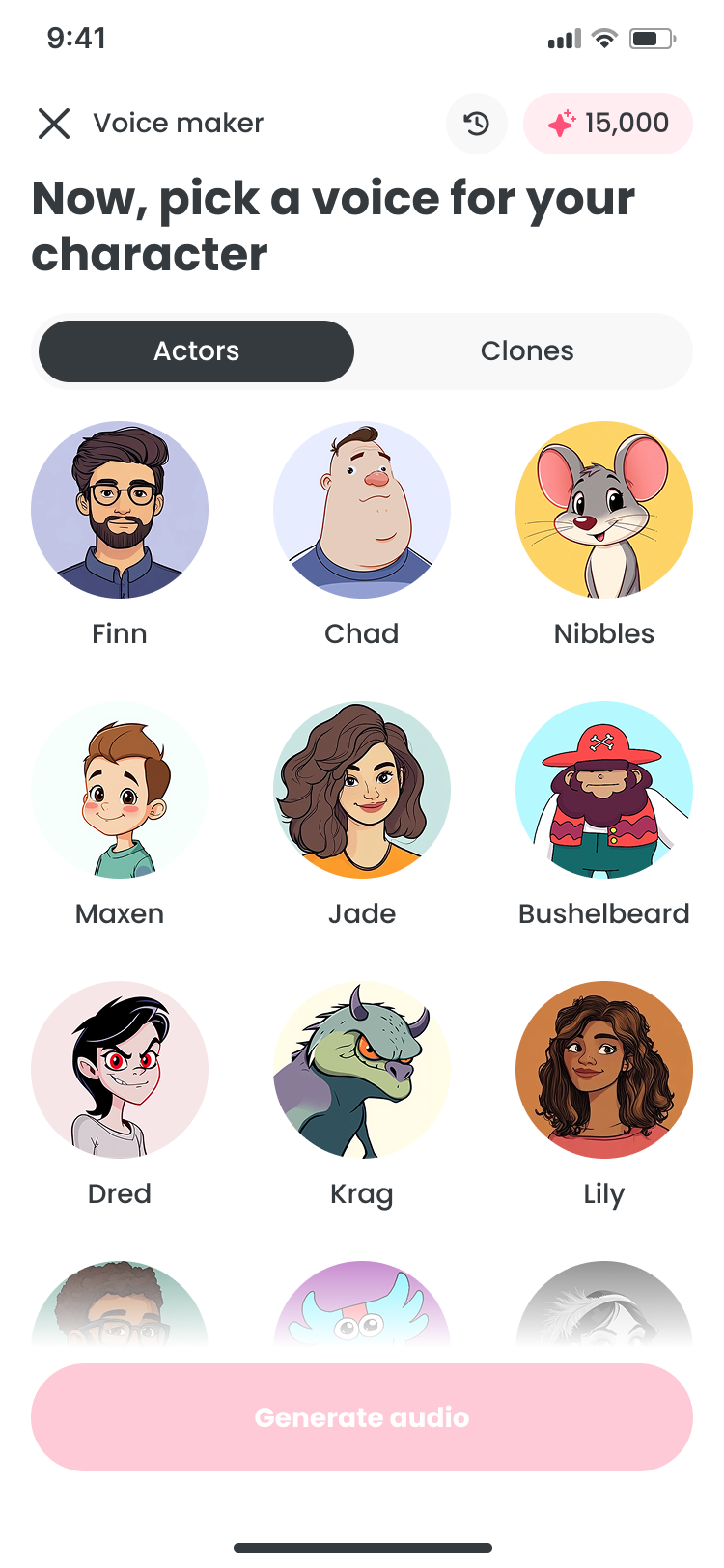
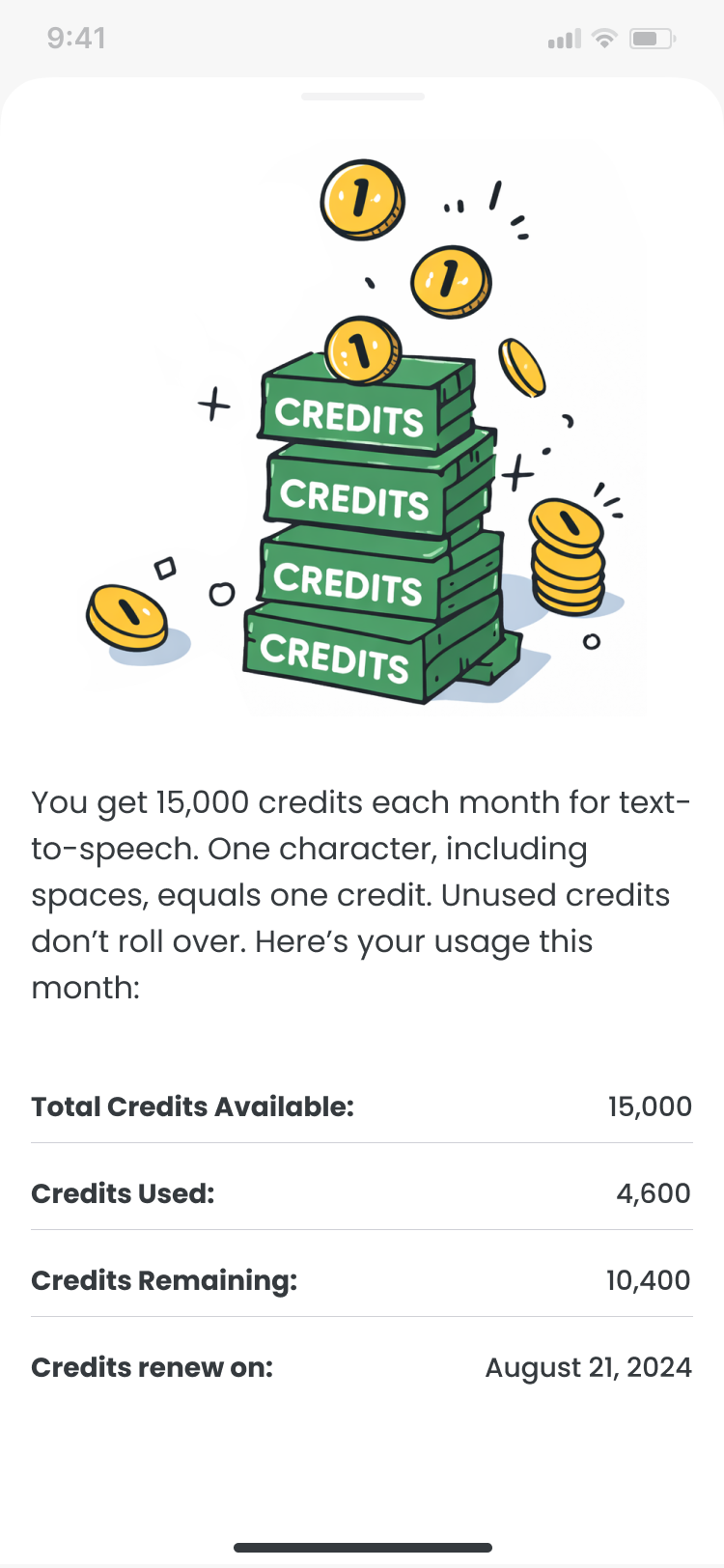
Voice Maker is a text-to-speech tool built inside FlipaClip. The goal was to feel as fast and natural as drawing: touch-first, with no friction between a script idea and a rendered clip.
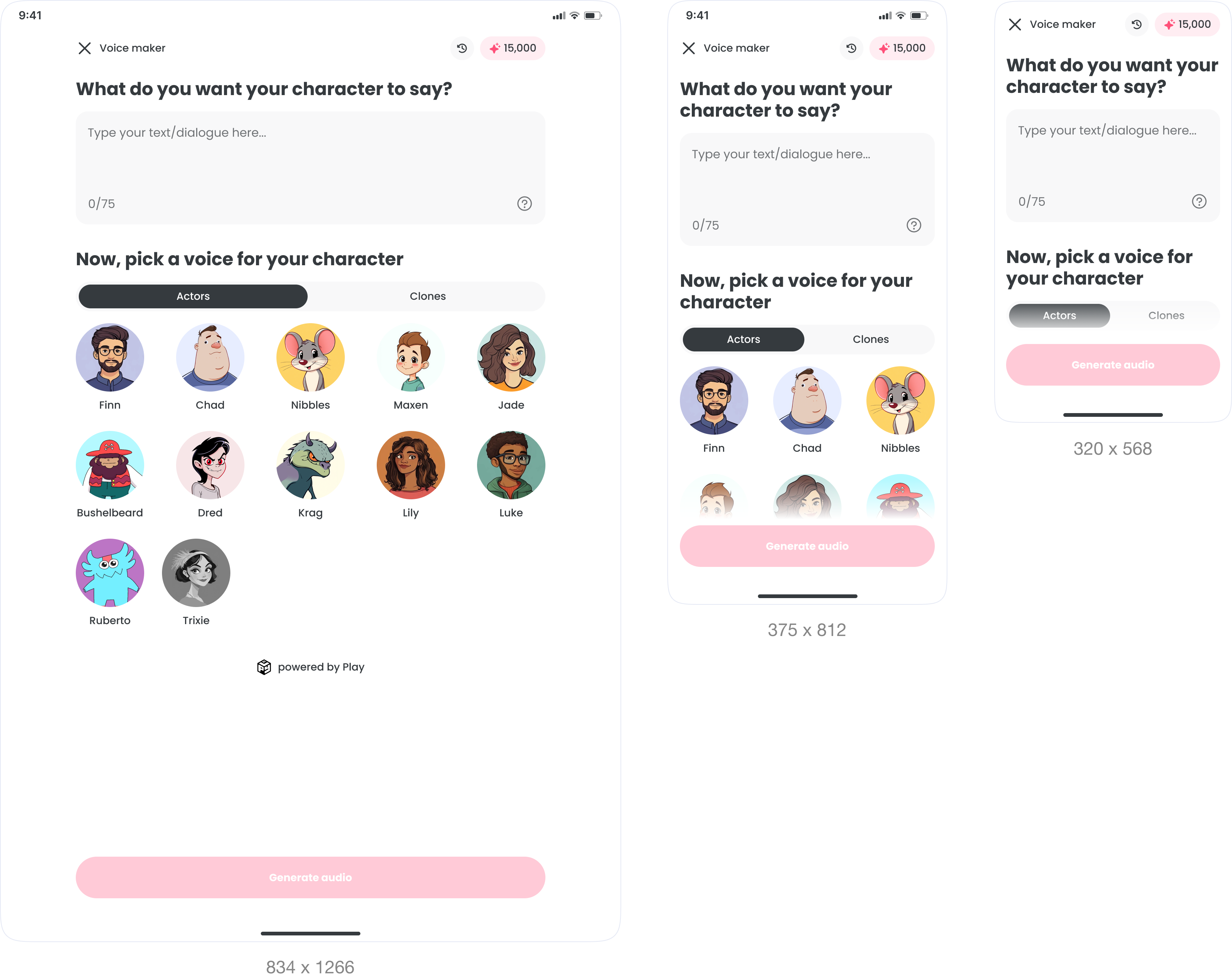
Device support was non-negotiable, from tablets to small Android screens at 320×568. It had to work on all of them, not just the easy ones.
Role
I was the sole product designer on a 6-week project, partnering with two co-founders, the development team, and QA to validate edge cases across devices before launch.
What I owned
- End-to-end UX from concept to ship
- Core flows and edge cases
- High-fidelity UI across breakpoints
- Specs and handoff
- Final polish
Requirements
Before any design work began, I mapped the full feature scope with stakeholders. These requirements were defined at kickoff as a shared checklist to keep the team aligned throughout.
Decisions
The journey map shows the core friction: every audio tweak meant leaving the creation screen. The fix was keeping text, voice, and generation on one surface. Voice selection is trial and error, so browsing and preview had to feel lightweight across every device.
| Awareness | Onboarding | Exploring Options | Generate Audio | Previewing Audio | Editing & Refinement | Finalization | |
|---|---|---|---|---|---|---|---|
| Actions | User opens the app to explore text-to-speech (TTS) feature. | User begins by typing or pasting their text and choosing a voice actor from a pre-generated list. | User tries out different voice actors by selecting and changing them while updating text input. | User selects 'Generate Audio' and is taken out of the current screen into the animation timeline. | User listens to the generated audio in the animation timeline section. | User goes back to the previous screen, adjusts the text or selects another voice actor. | User finally generates audio, reviews it, and decides to keep it, proceeding to the timeline. |
| Expectations | Wants to convert written text to audio with a voice that matches their preferences. | Expects to find the right voice for the text without much friction. | Hopes to find the best voice match for their text and easily make adjustments. | Expects to hear the final audio immediately but must leave the original screen to hear it. | Expects the audio to be a good fit, but is unsure if they might need to go back and make more edits. | Wants to quickly switch voices or refine text without needing to re-enter the entire process again. | Expects the final version to match their vision and hopes not to make any more changes. |
| Thoughts | Curious about how text-to-speech works. Wondering how the voices will sound when narrating their text. | Excited but uncertain about the selected voice matching the tone they want. | Worried that they cannot preview the generated audio in real-time without being taken to a new section (timeline). | Frustrated about having to leave the main screen, making it harder to make quick edits to the text or voice. | Contemplates whether further edits are necessary and dreads having to return to the previous screen. | Worry that the editing process will take too long, leading to a frustrating back-and-forth between sections. | Relieved that the process is over and pleased with the final outcome, though frustrated by the effort required. |
| Emotion | 😊 | 😐 | 😕 | 😩 | 😕 | 😩 | 😅 |
Journey map
Scroll to see all stages →
The Loop
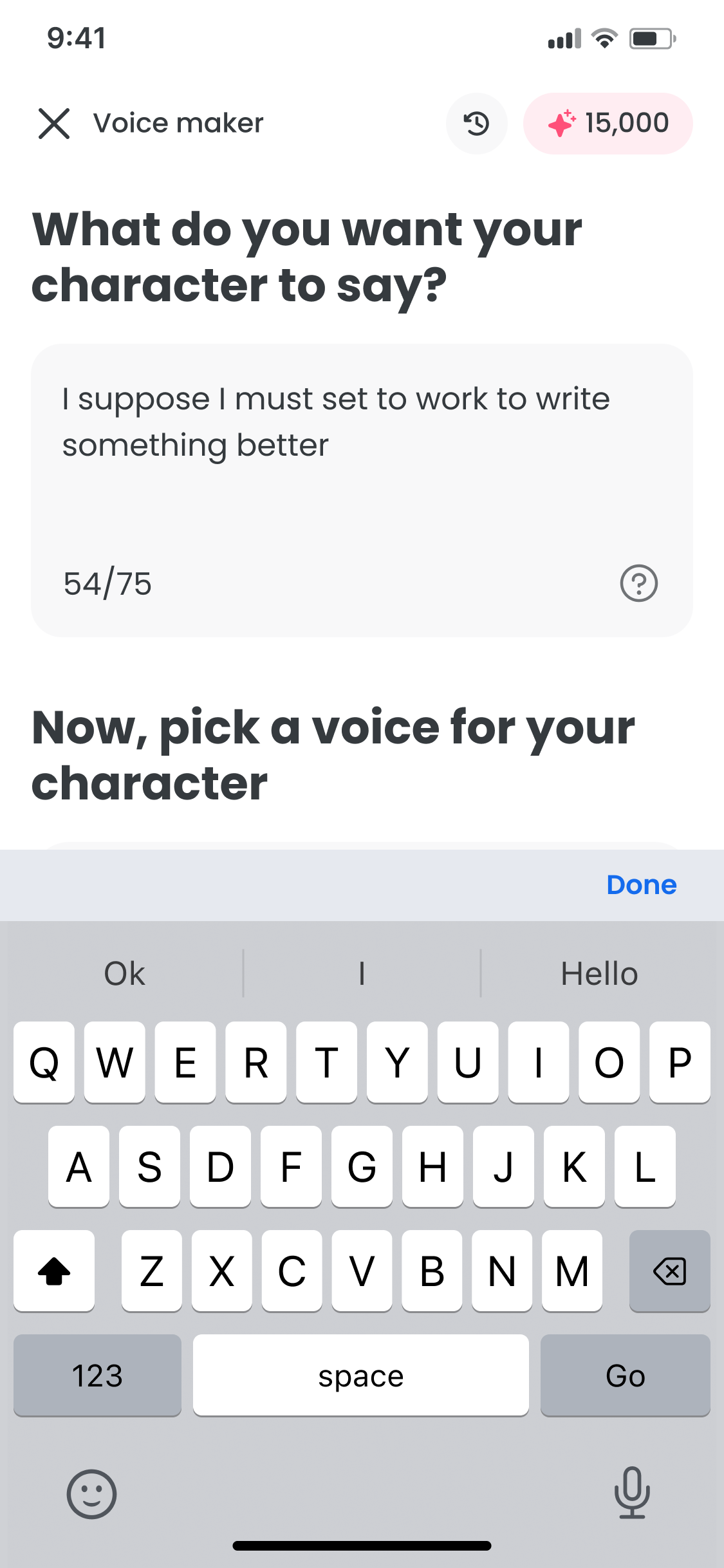
Voice iteration is repetitive: write, pick a voice, generate, and adjust. The goal was to keep it all on one surface, inside FlipaClip.
What shipped
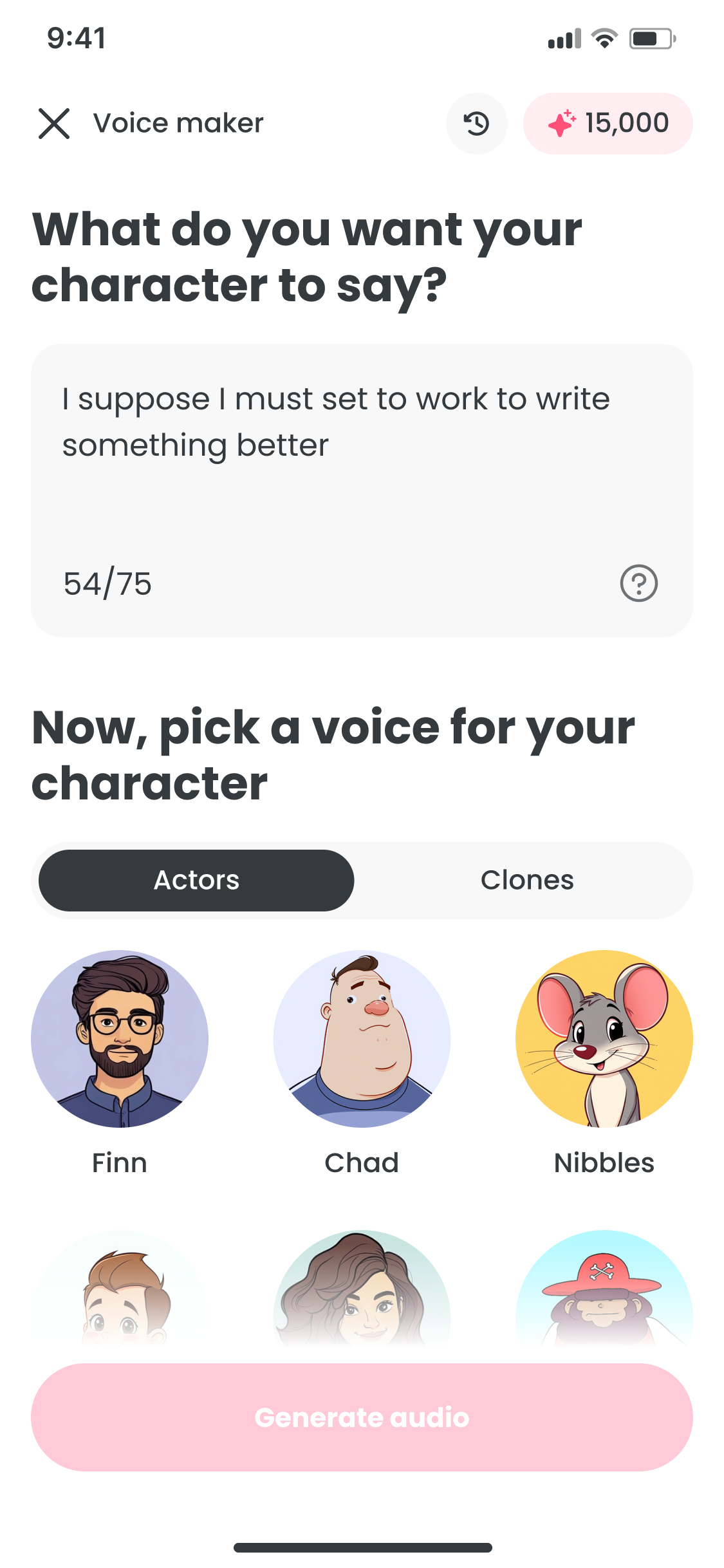
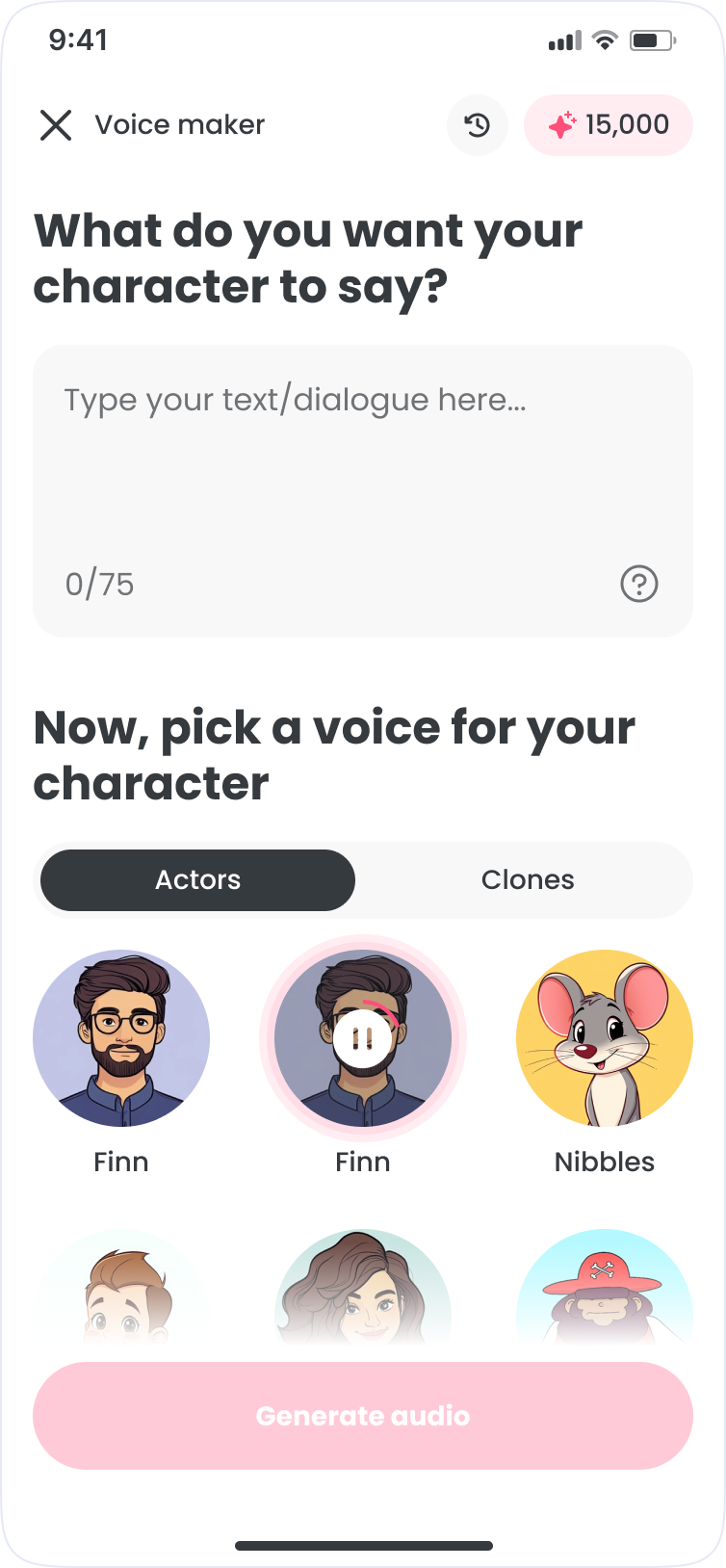
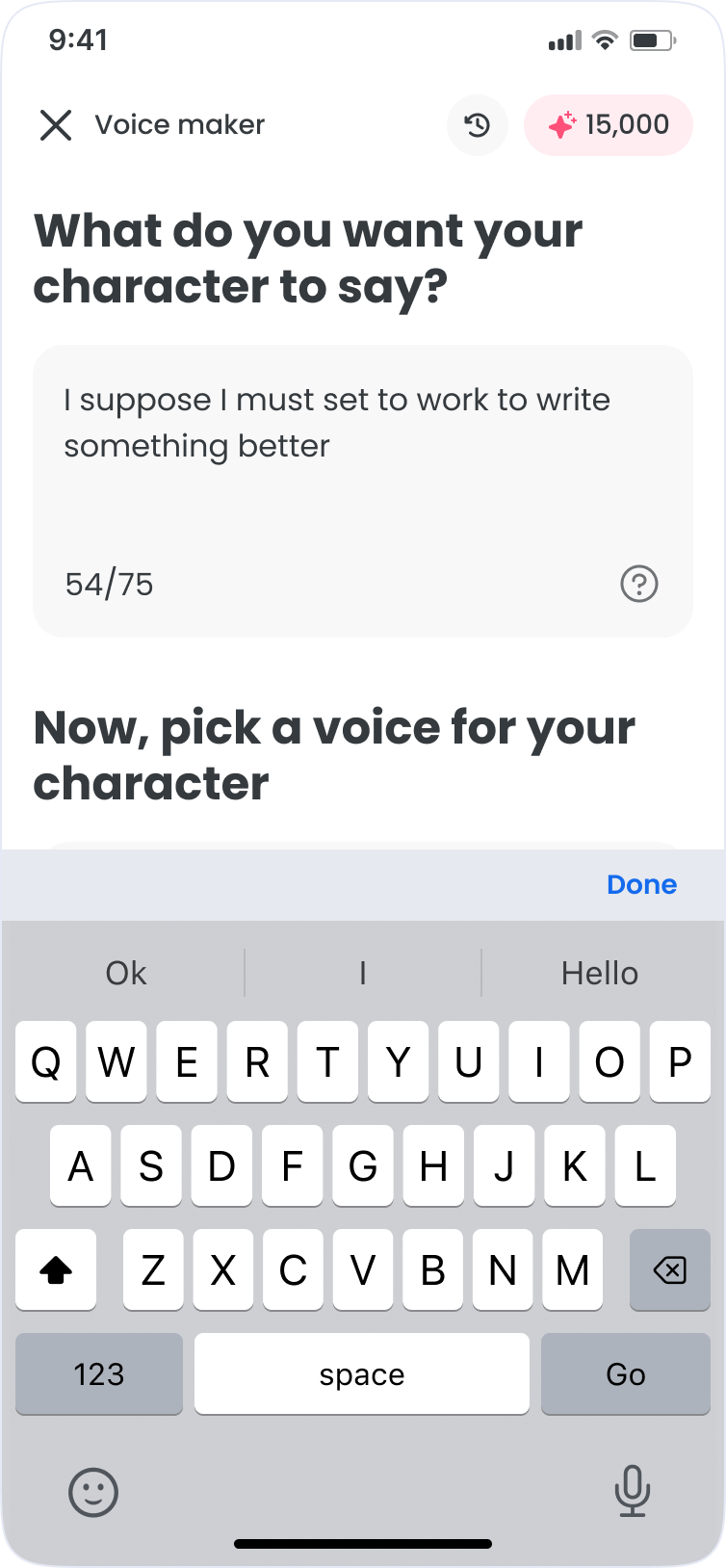
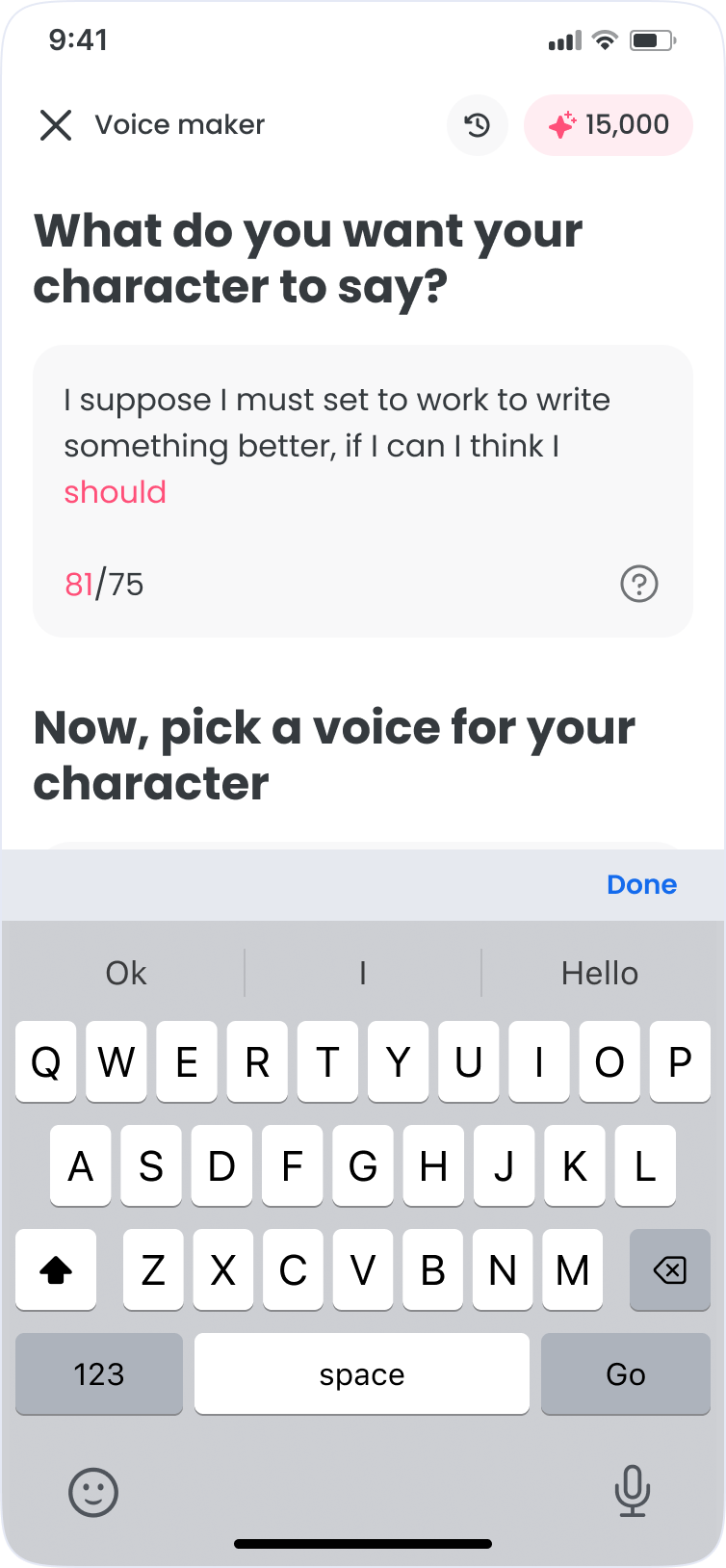
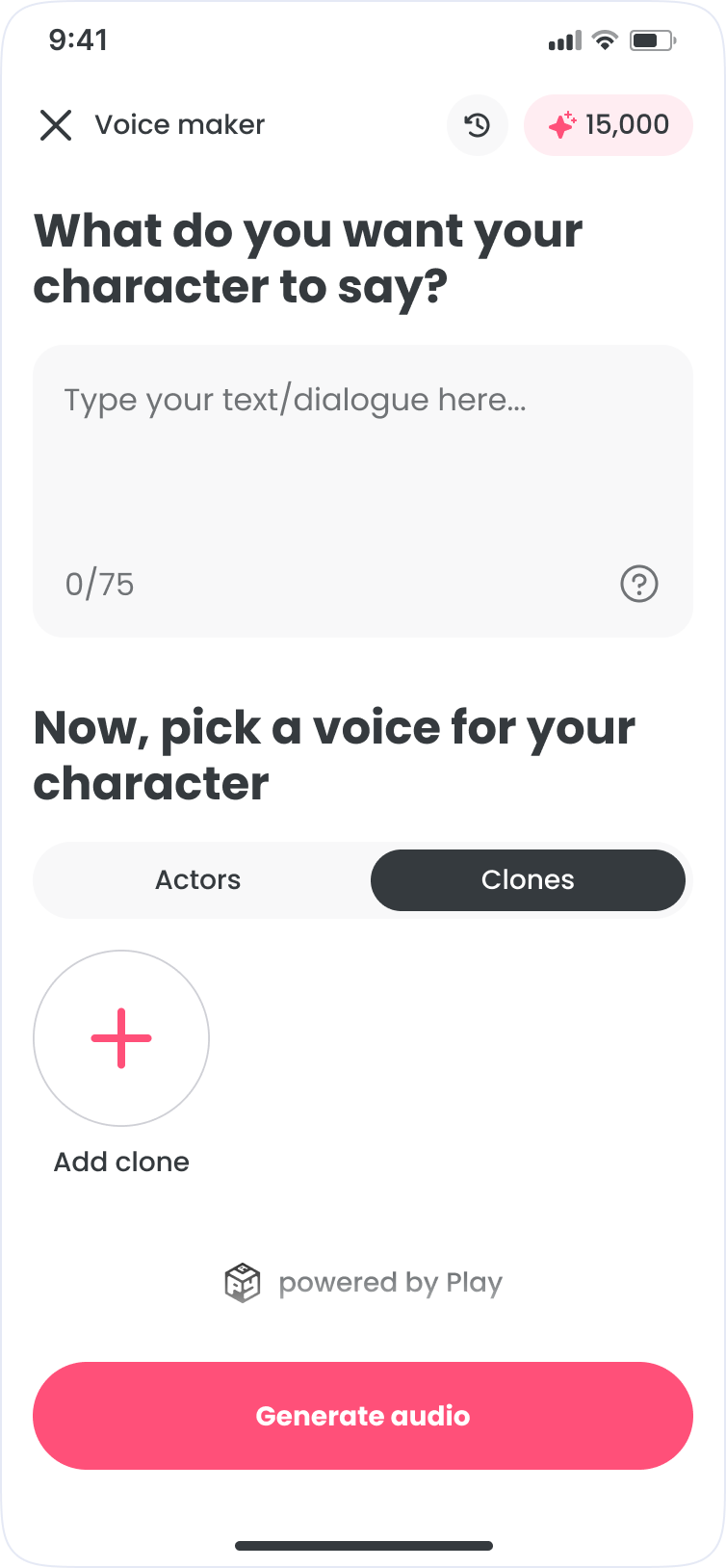
- Write: compose and edit dialogue with optional AI writing assistance
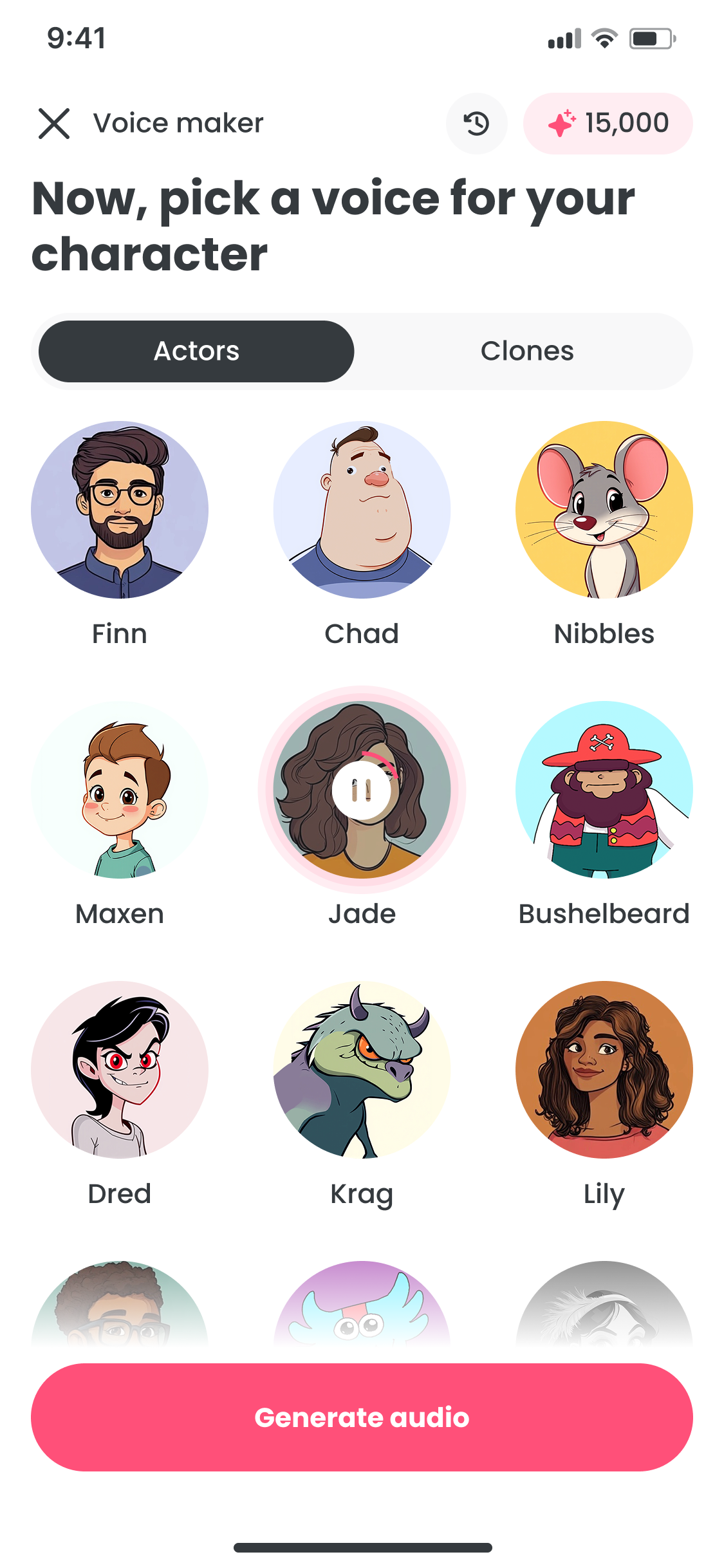
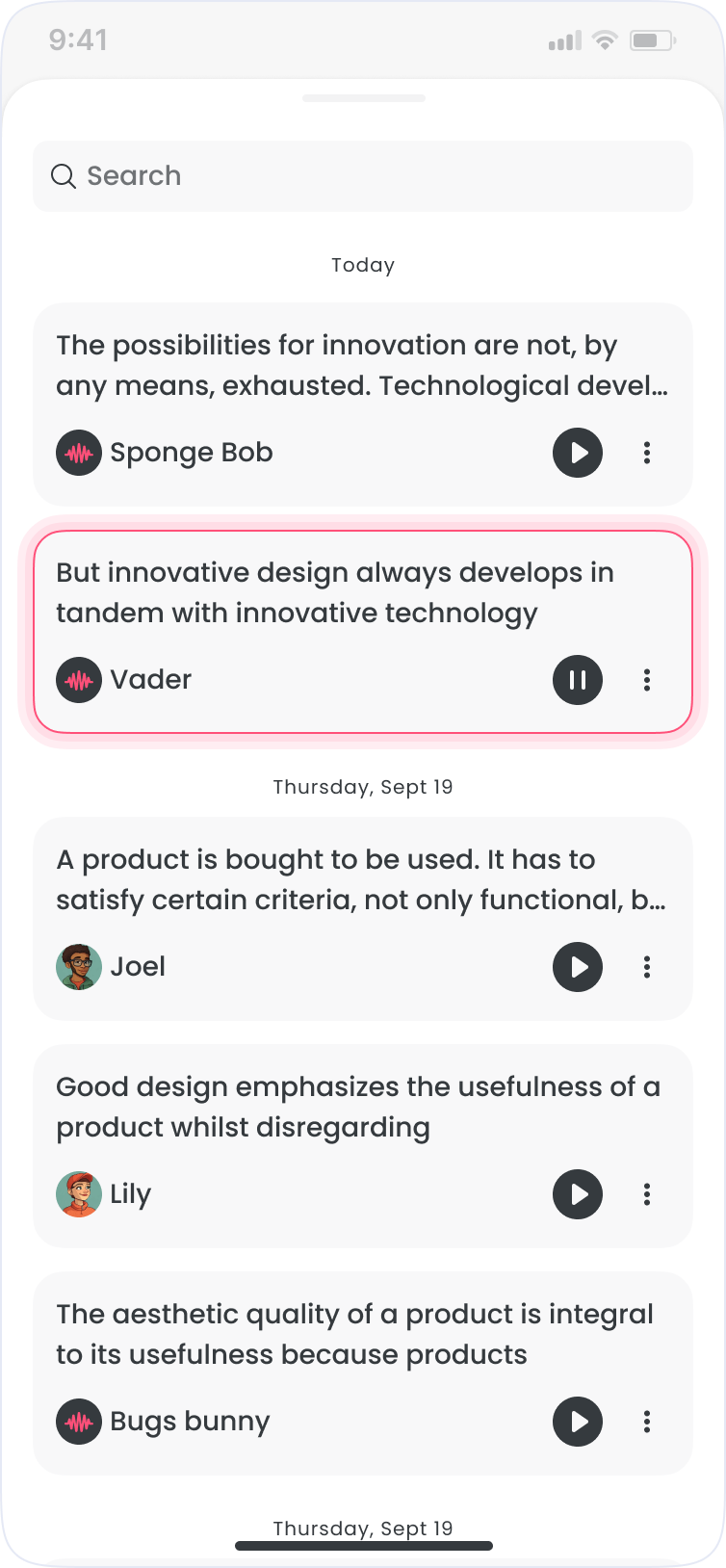
- Voice: browse, preview, and filter voice actors by style
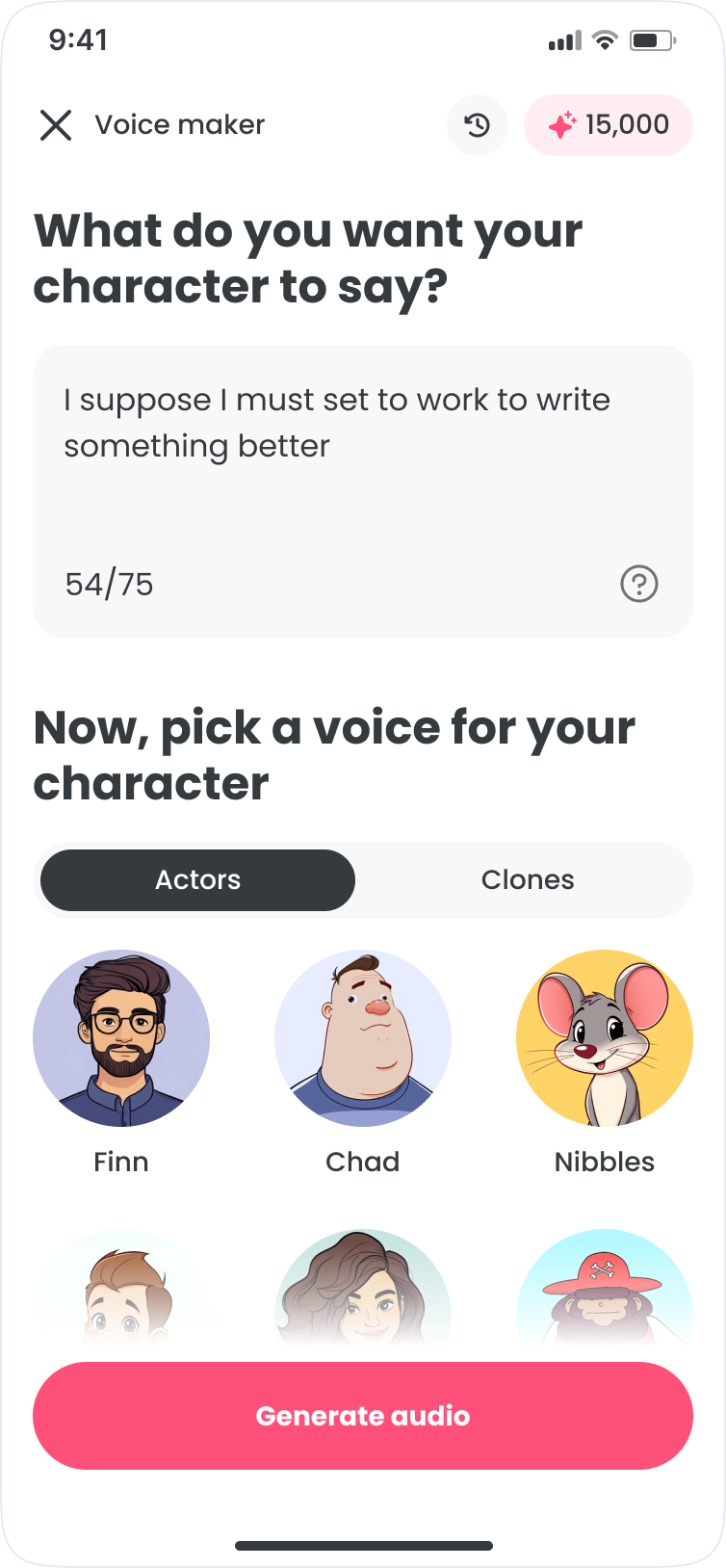
- Generate: render text-to-speech and iterate quickly
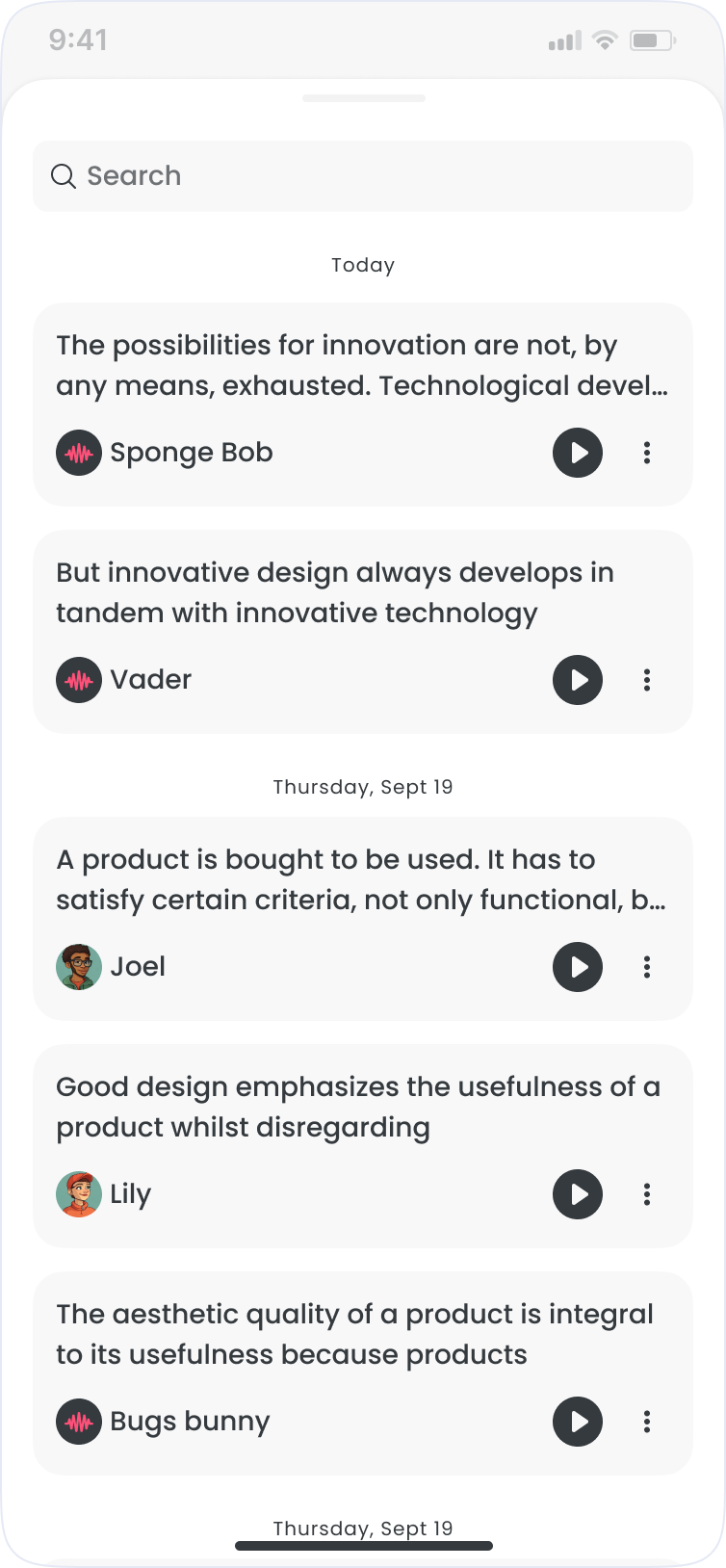
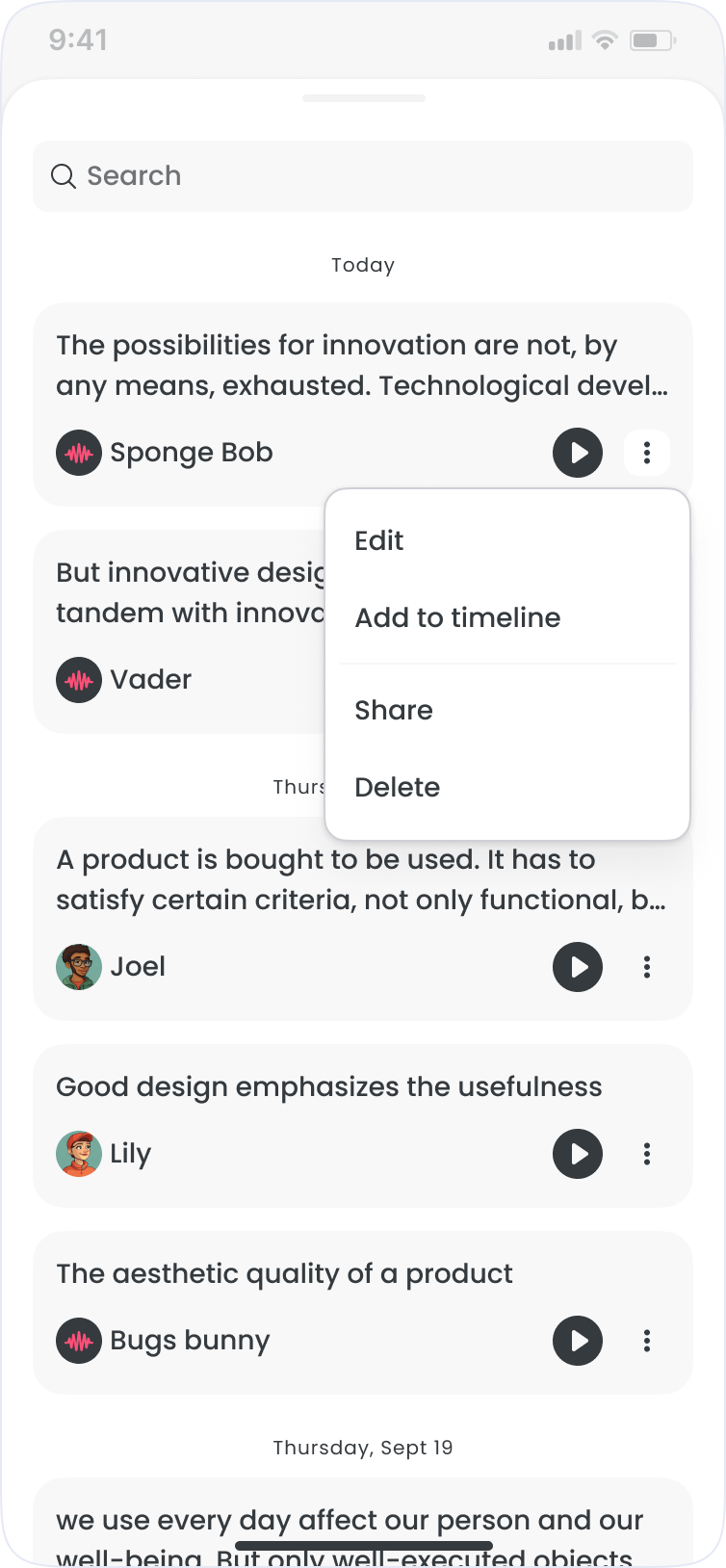
- Library: save, rename, and reuse clips across sessions
Write
Voice
Generate
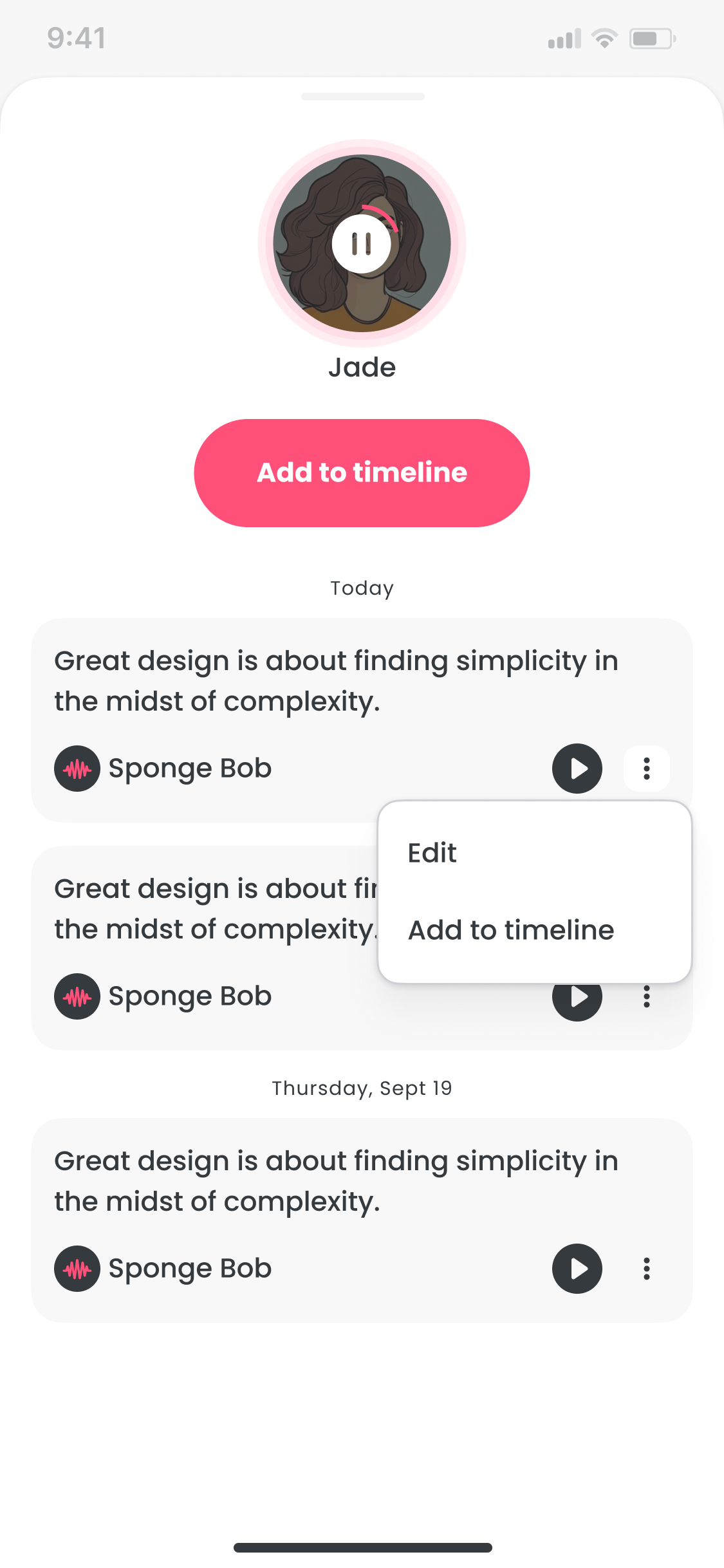
Library
Shipped
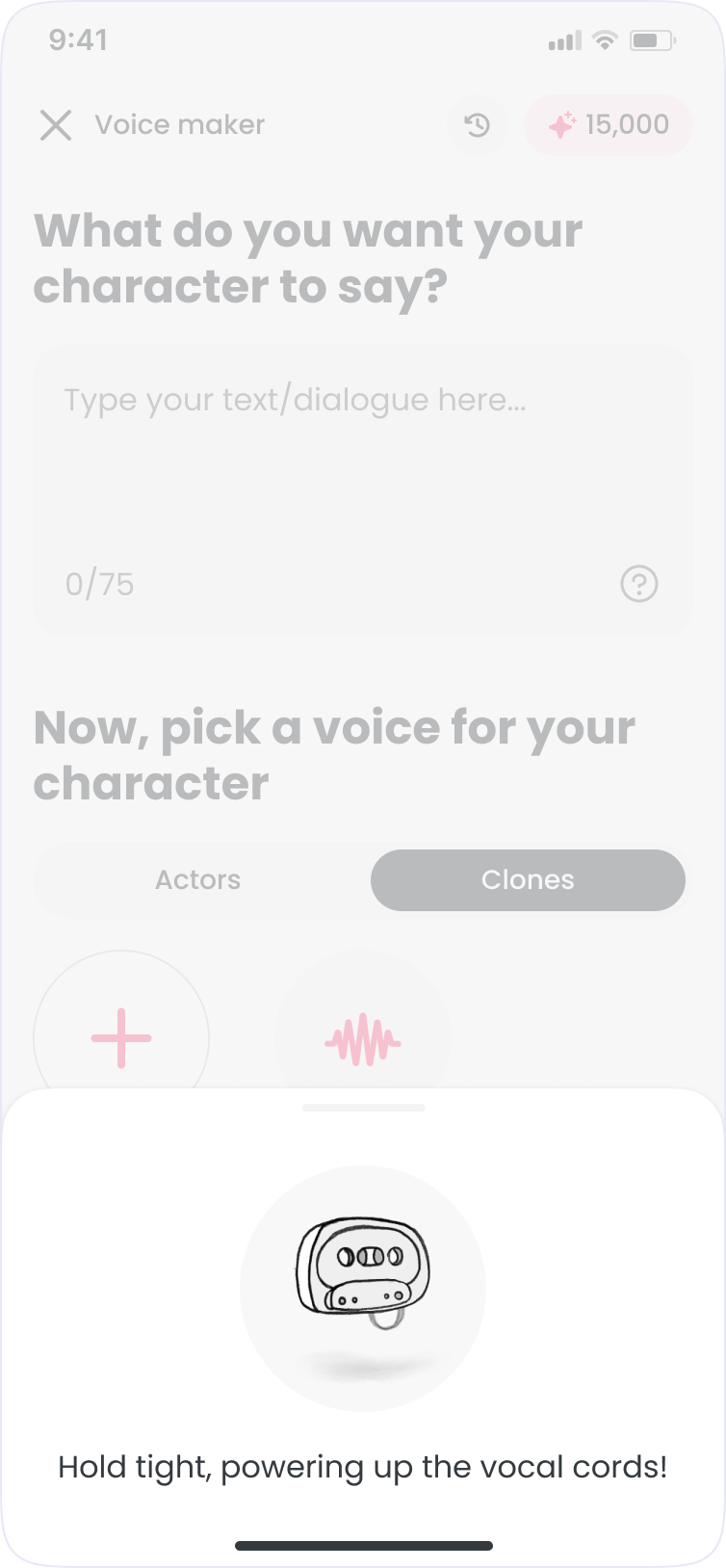
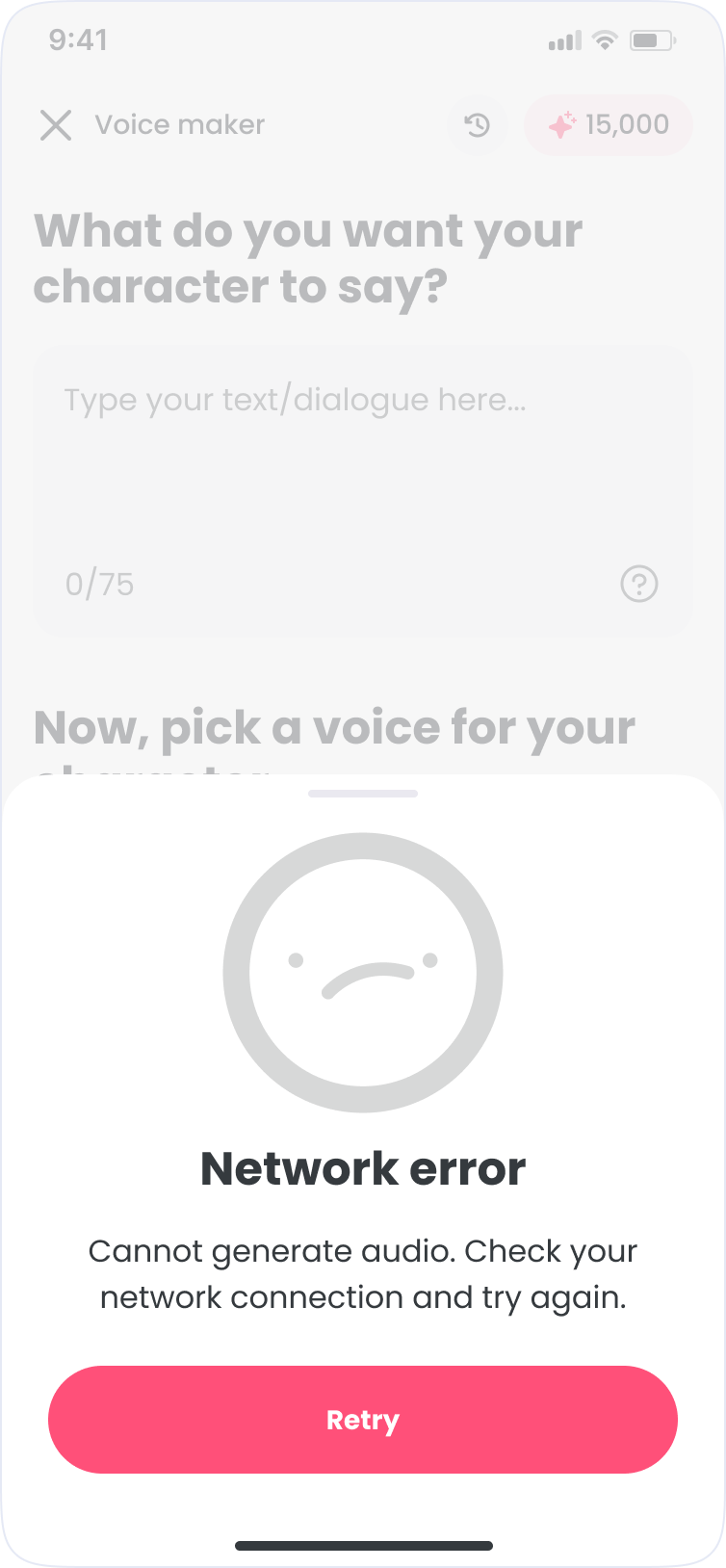
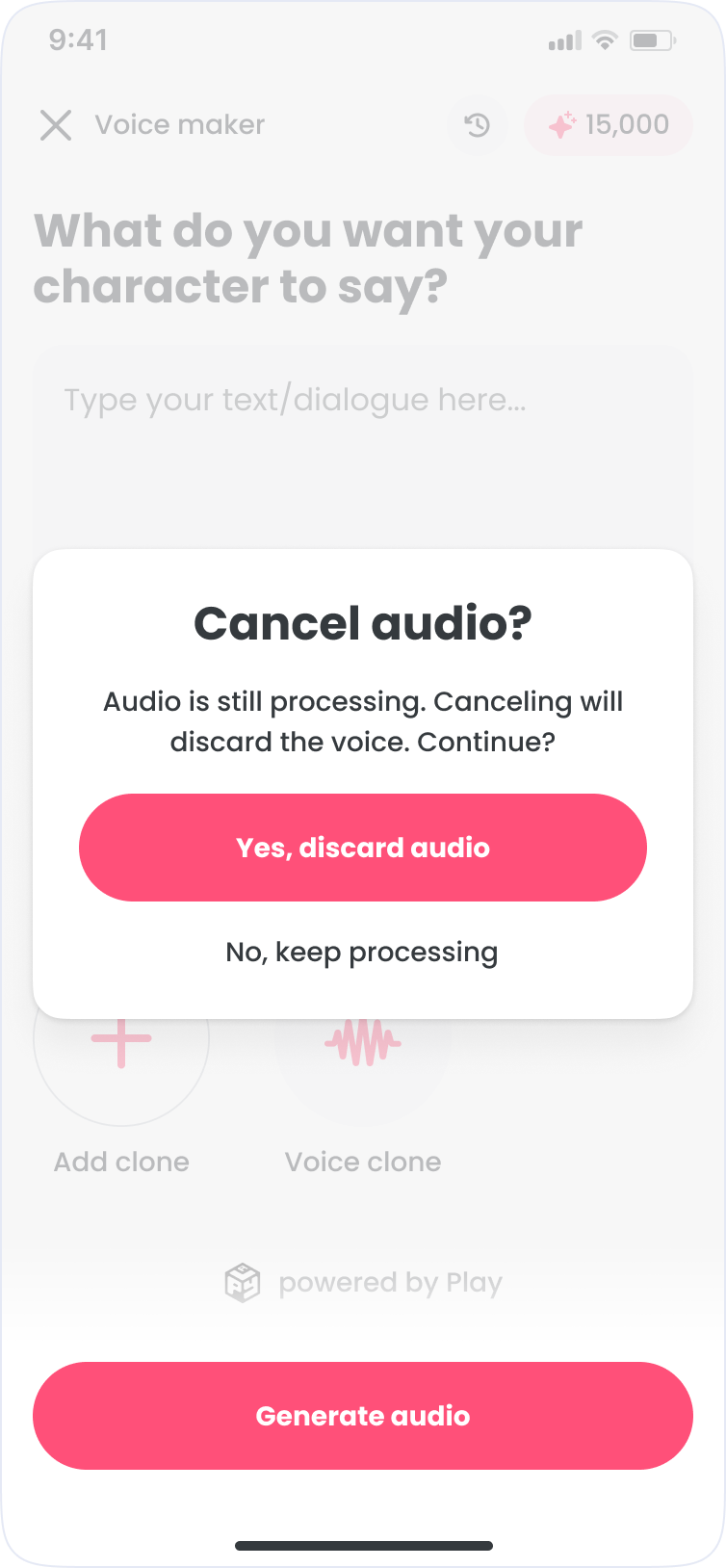
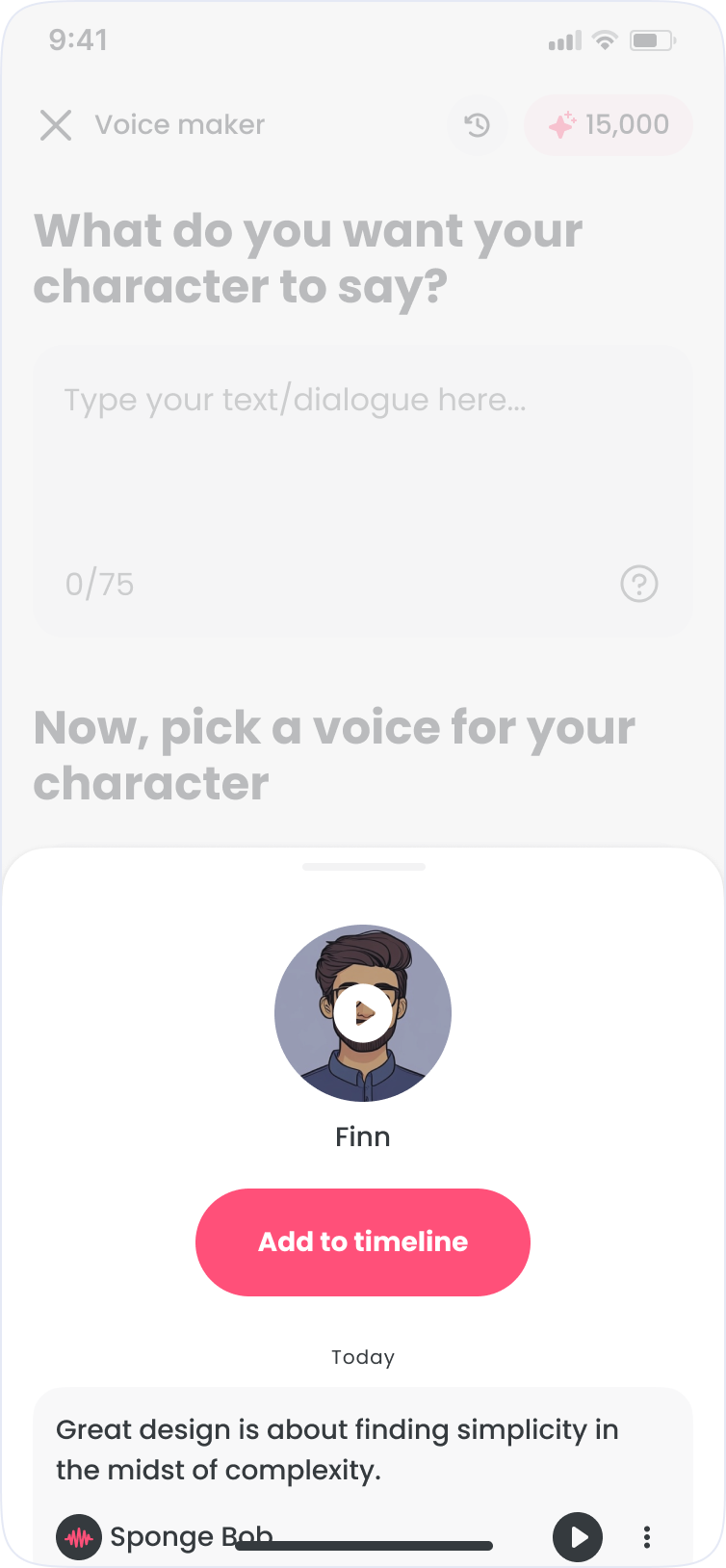
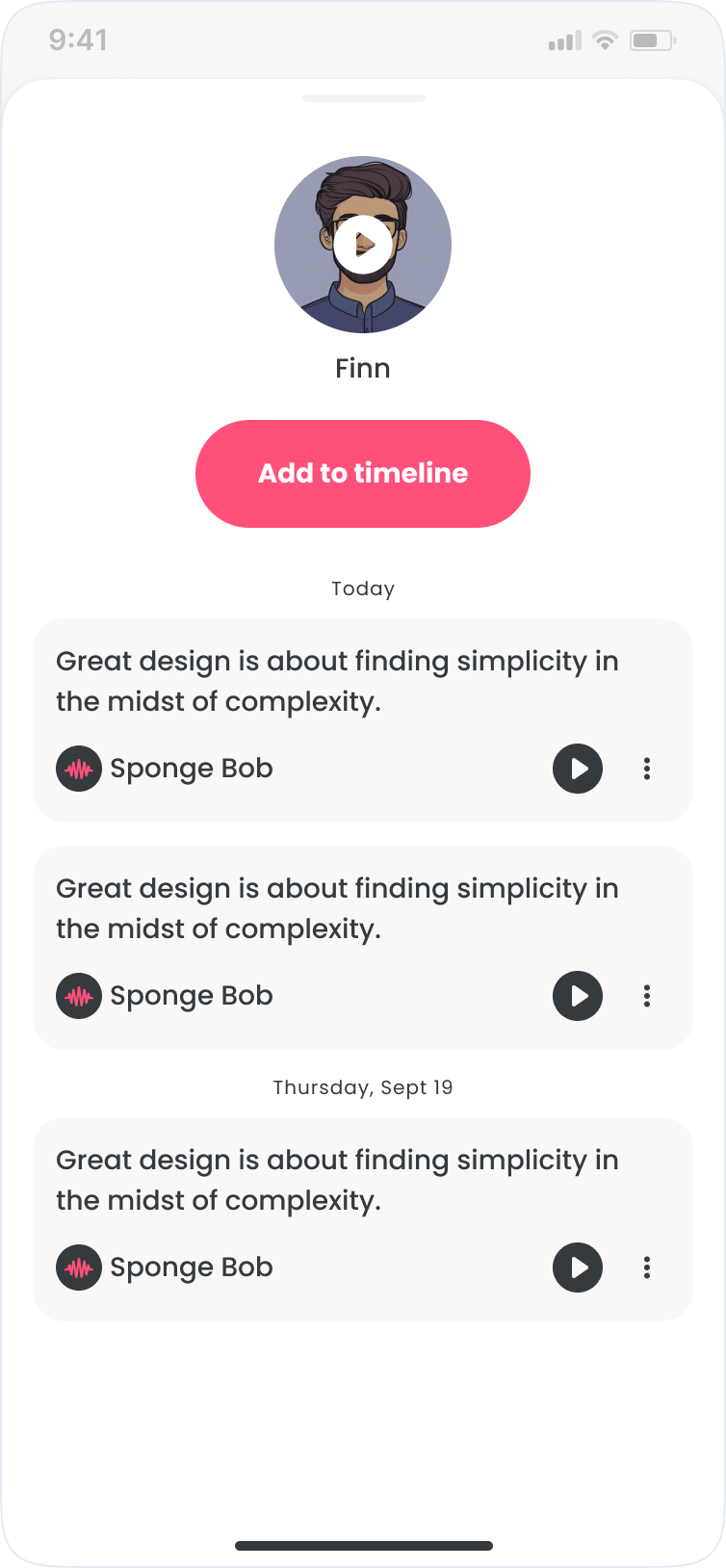
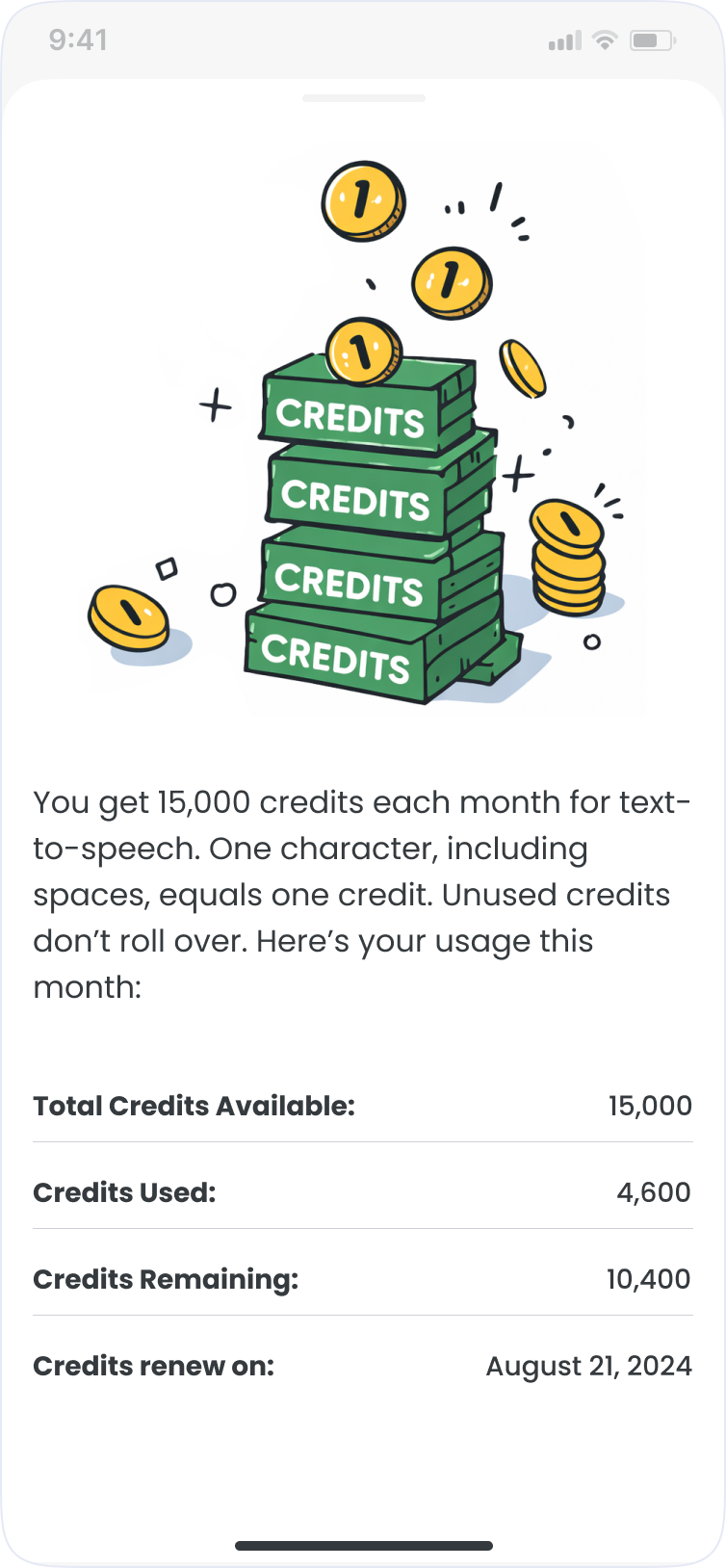
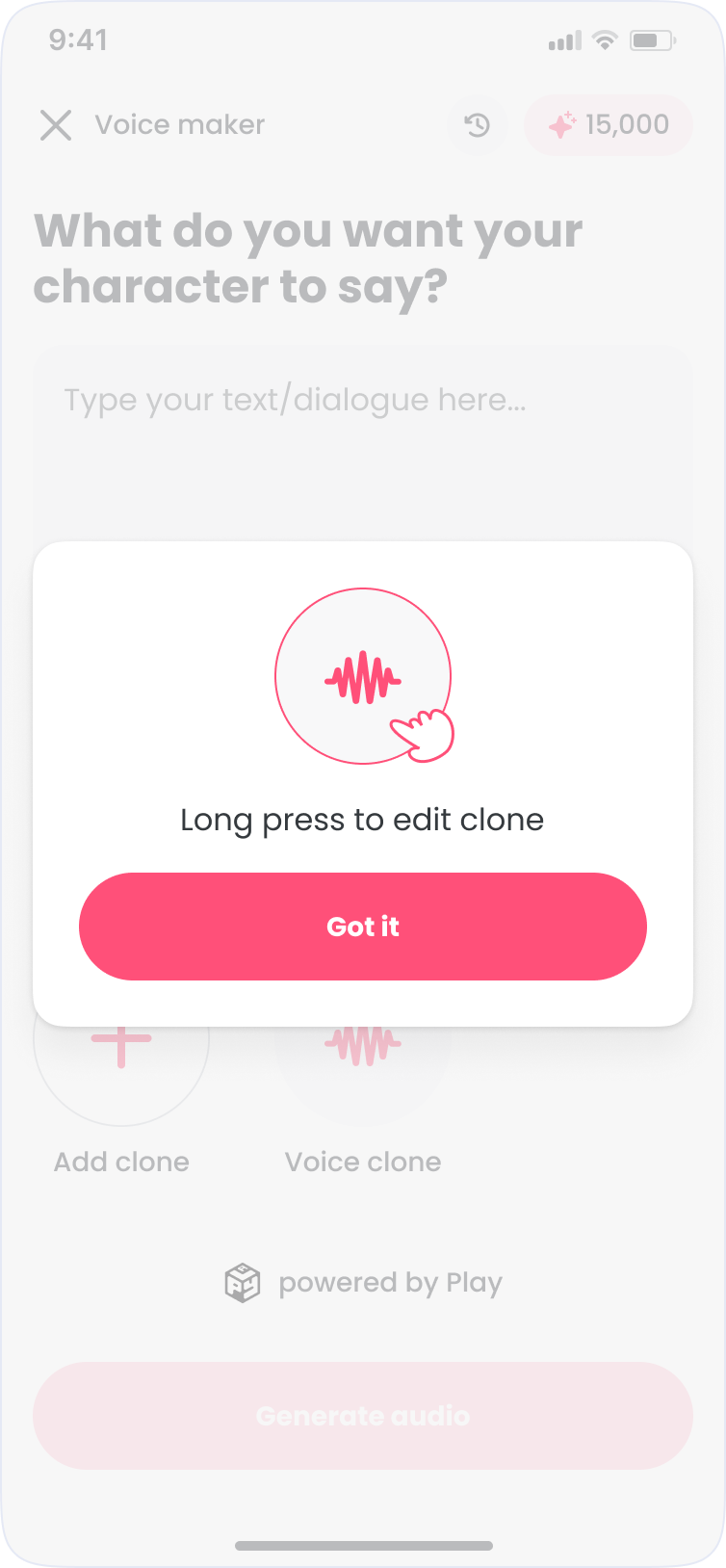
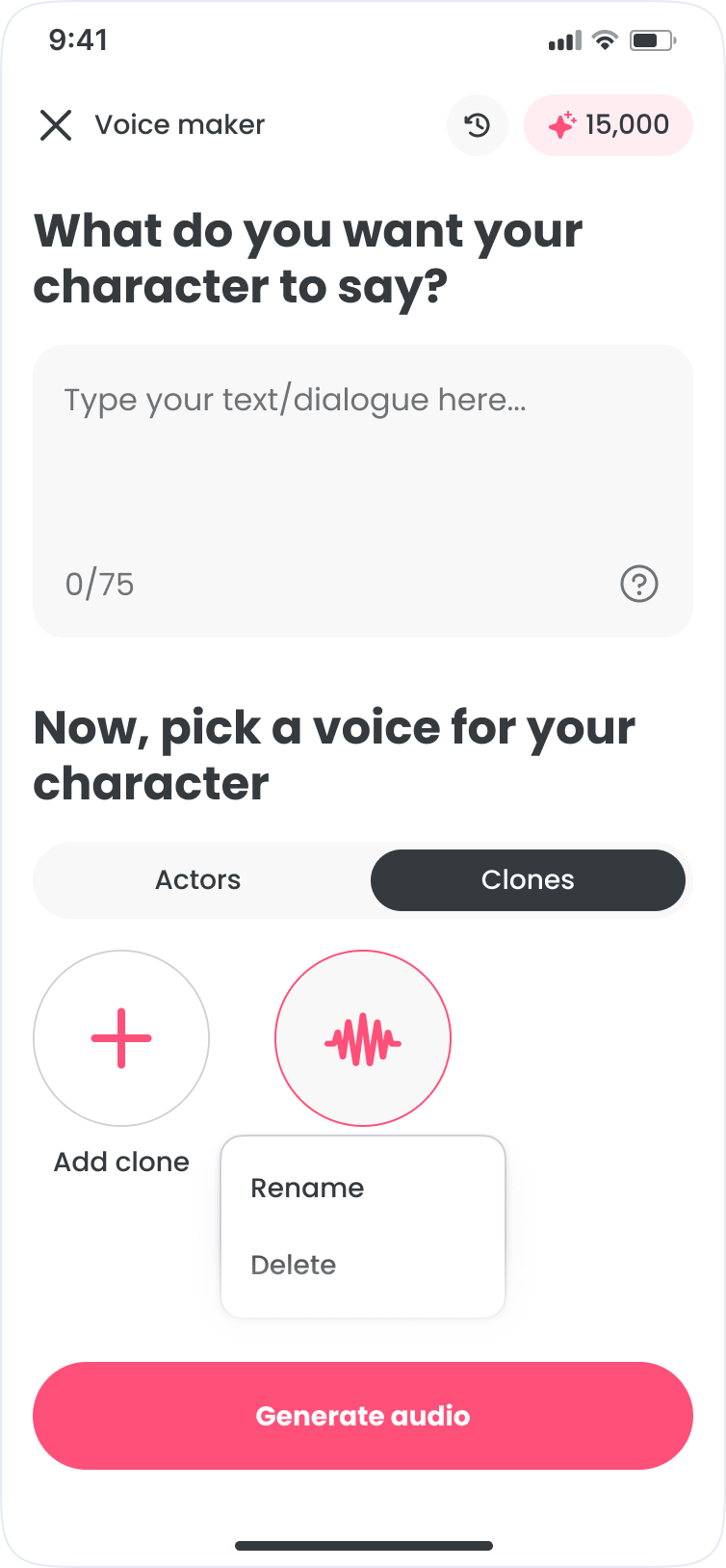
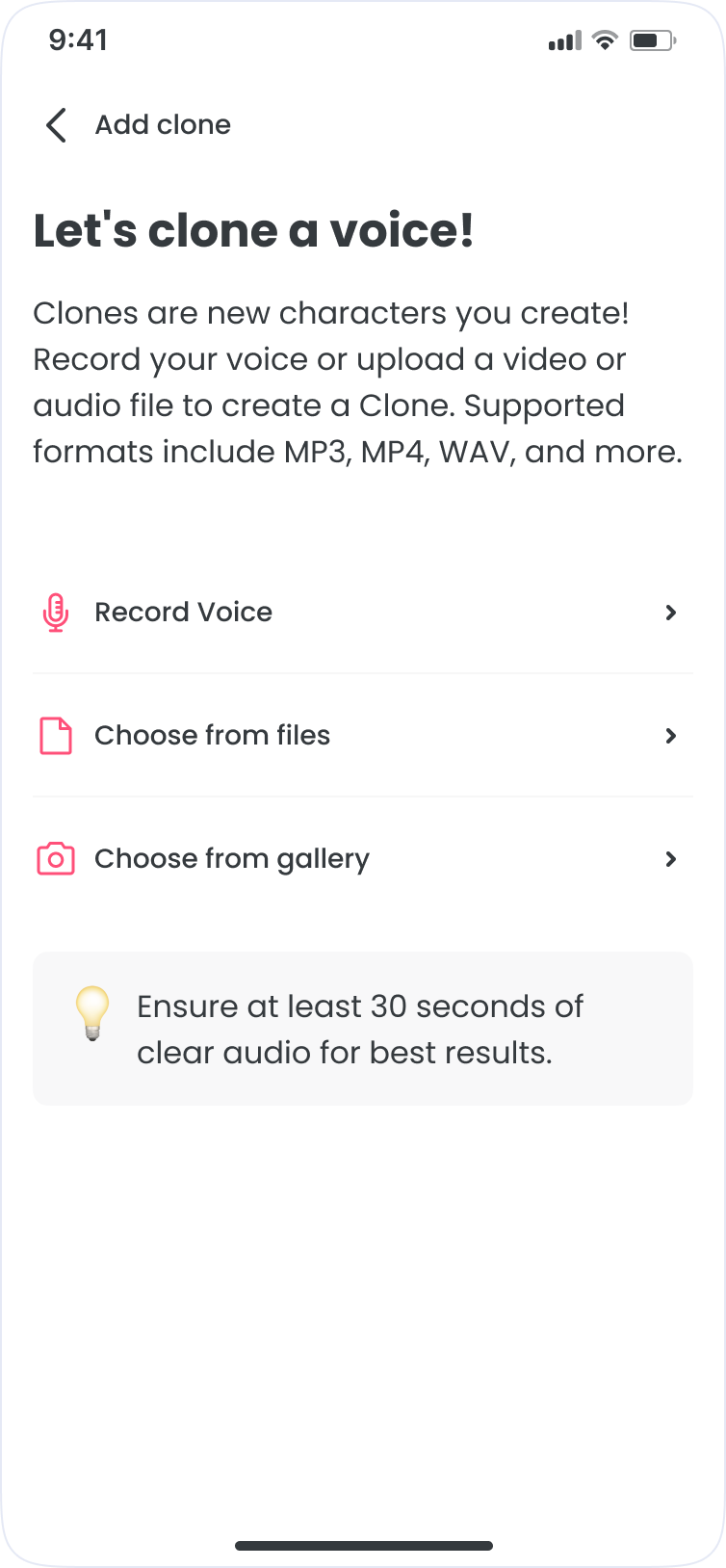
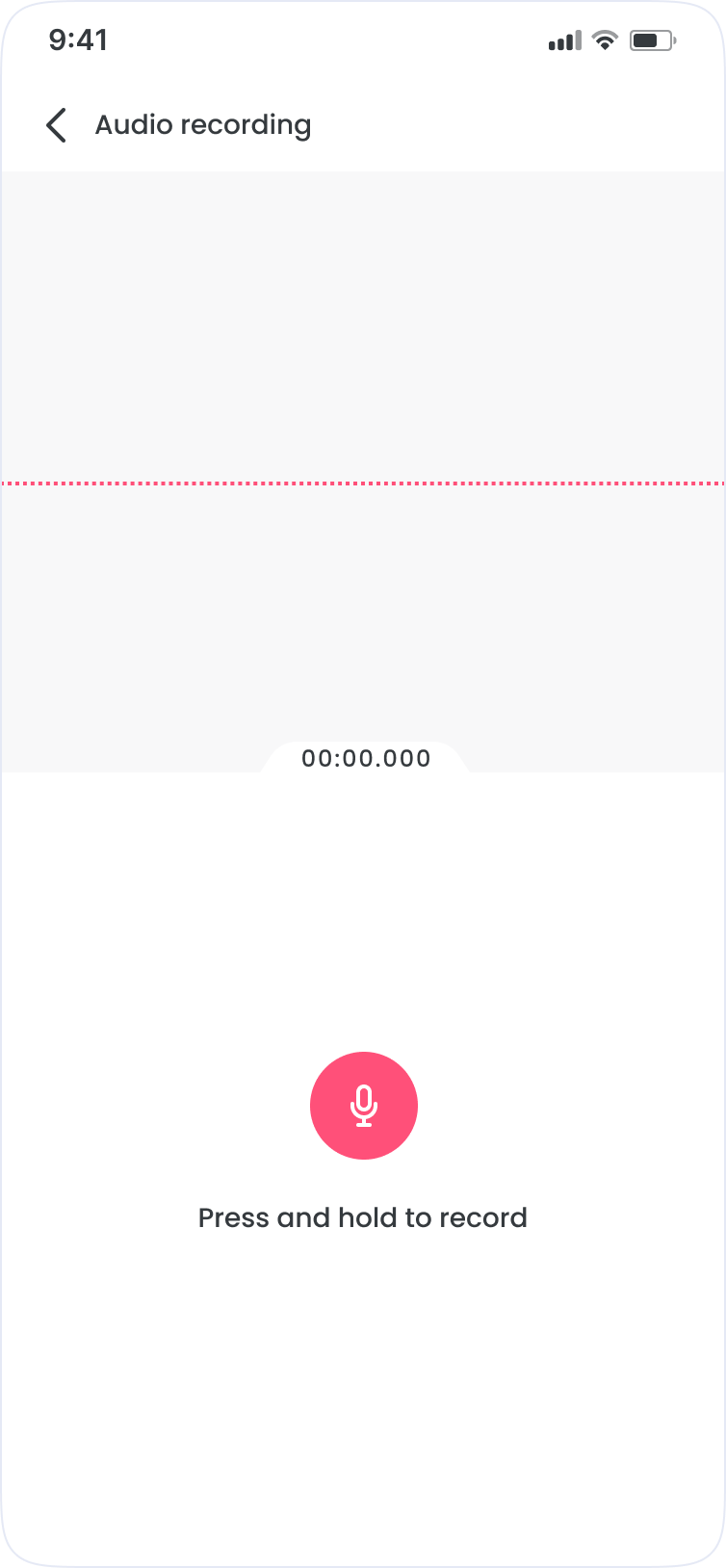
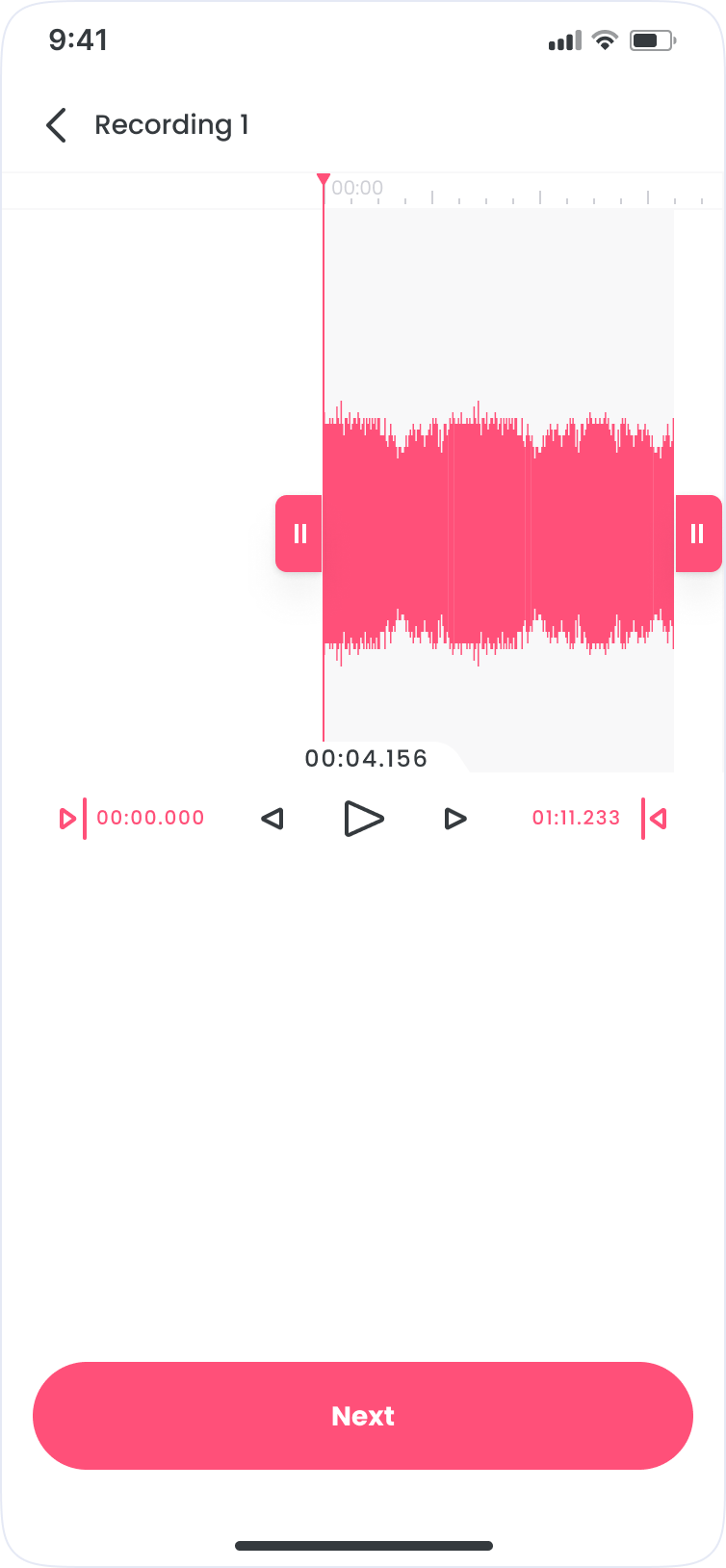
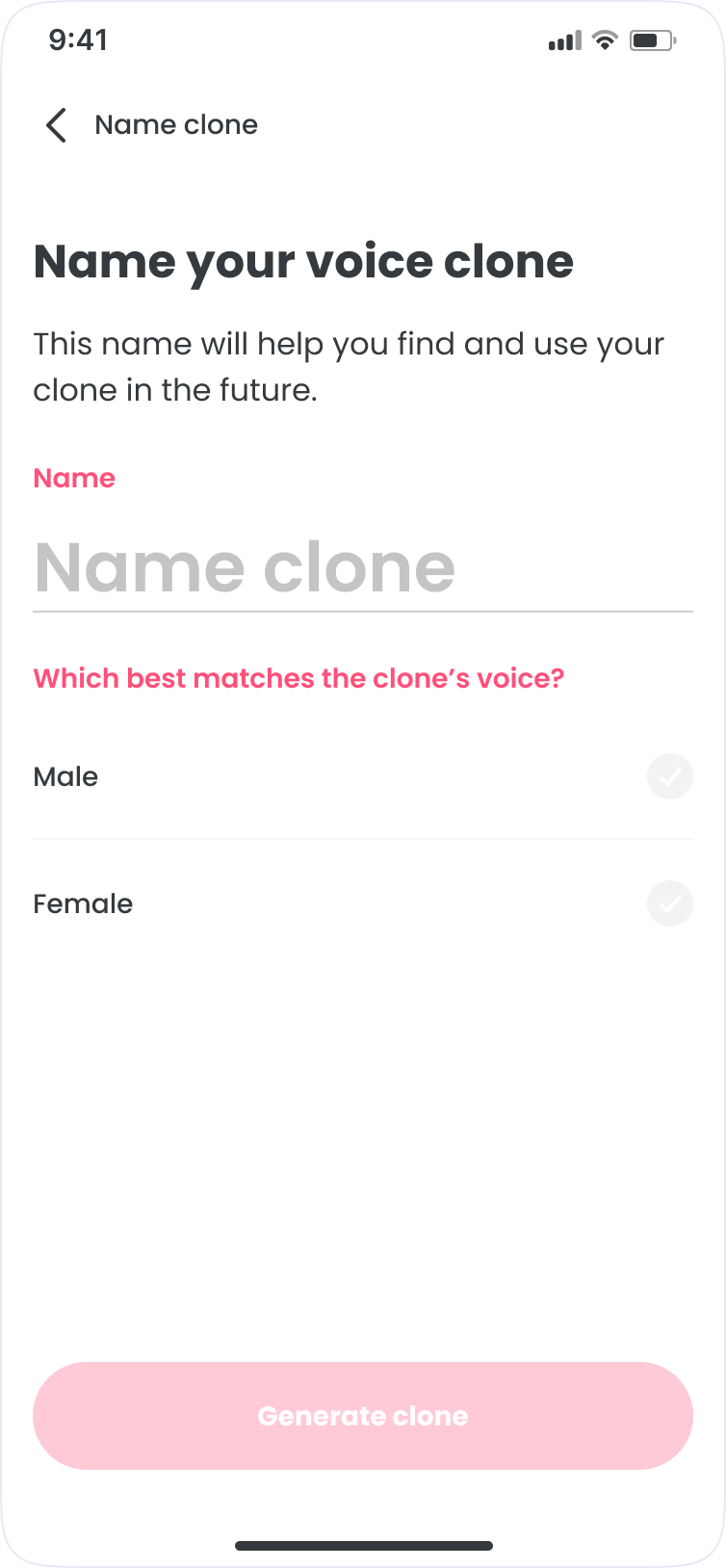
Before release, we ran an in-house QA pass across devices to catch layout breaks, flow issues, and state handling problems. I reviewed builds for visual consistency and interaction quality while engineering and QA validated bugs and edge cases.
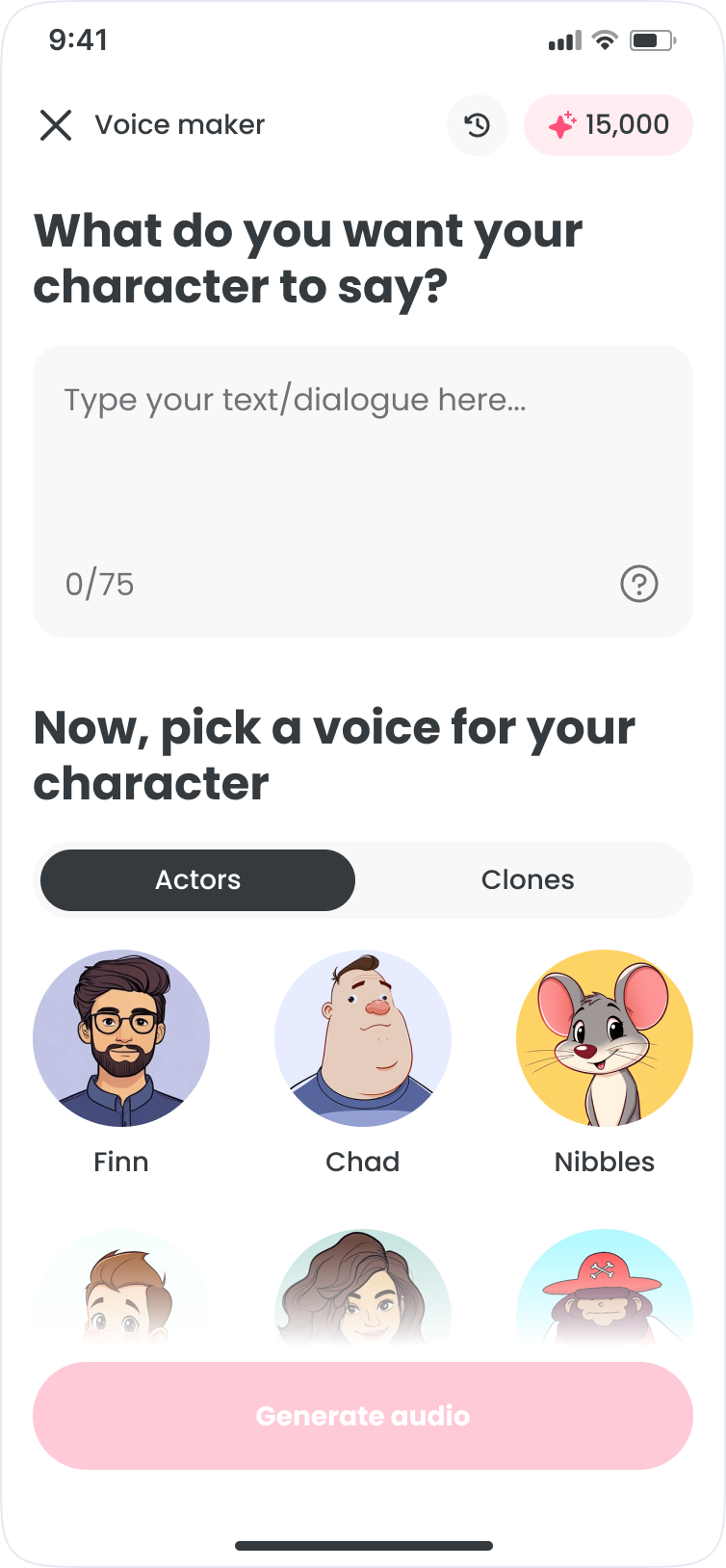
The priority was small screens. A broken layout on a 320px Android undermines the whole product. If it worked there, it worked everywhere.
Learnings
Post-launch, the strongest signal was repeat behavior. Creators generated multiple clips in a session and returned to saved audio, suggesting Voice Maker became part of normal creation flow rather than a novelty.
The AI ethics split was sharper than expected. Most creators were practical about it. A vocal minority pushed back hard, arguing AI voice devalued real performance. We made it opt-in and clearly labeled.
Simplicity is what makes or breaks a tool like this. Every extra step is friction, and friction kills repeat use. A fast loop was the foundation. The library and cloning were built around it.
Other works